 Brandefyn

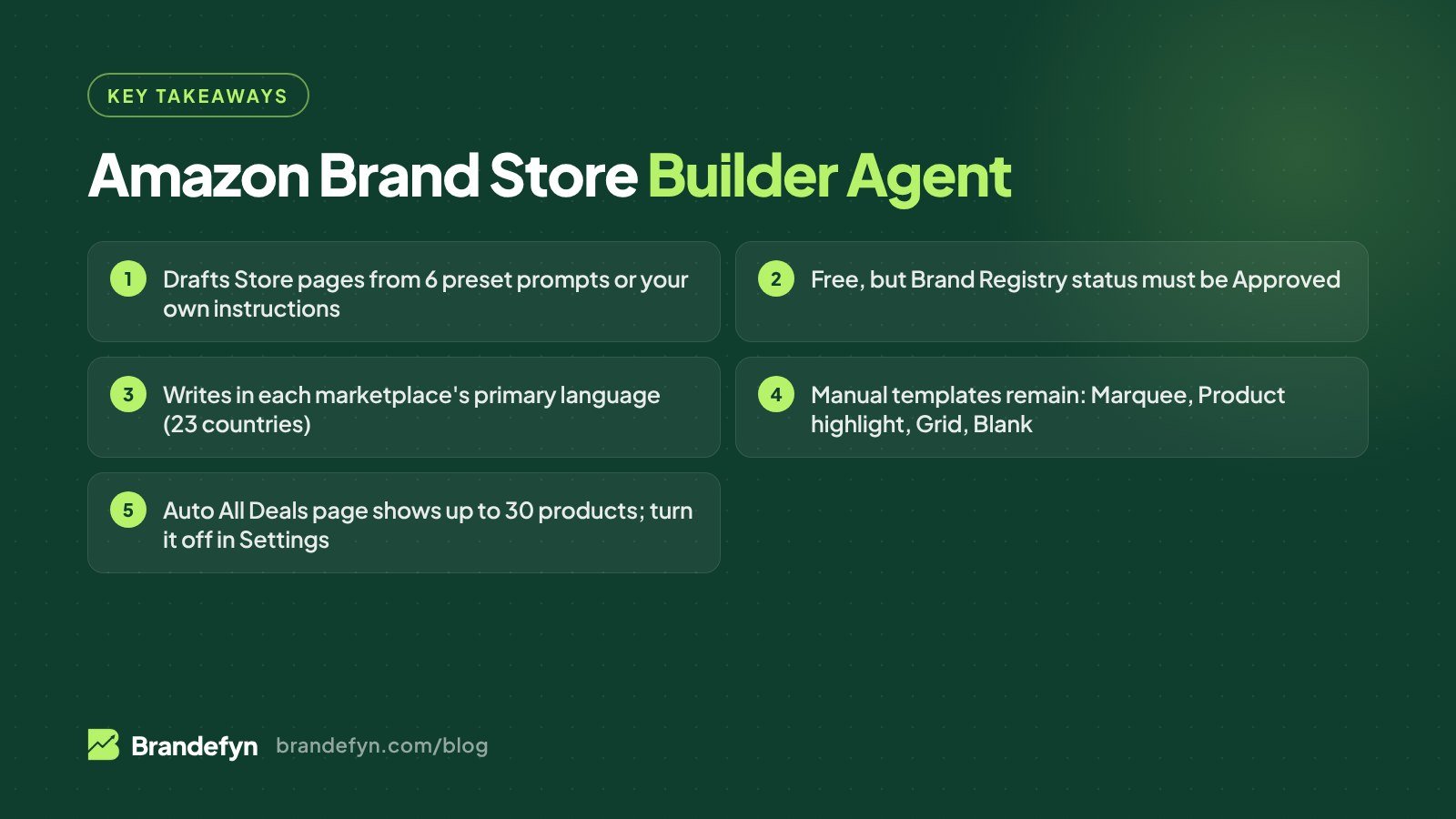
Short answer: The Amazon Brand Store Builder Agent is a new AI assistant in the Stores builder. When you click Add page, it now opens first and drafts the page for you from one of six prewritten prompts or your own typed instructions. You review it, ask for edits, then customize and publish. It's free and needs an approved Brand Registry account. If you'd rather build by hand, click Add page without AI assistance to get the normal templates. Before Cyber Monday (November 30), also check Amazon's automatic All Deals page, which is on by default and picks up to 30 products for you.
Amazon quietly changed how new Store pages get built. PPC Land spotted the update on November 22, based on Amazon Ads Support Center pages updated on November 11 and November 21. If you open your Store builder this week to add a Black Friday or Cyber Monday page, you'll meet the agent before you meet the templates.
Here's what it does, when it's useful, and what to check so it doesn't publish something you didn't intend.
What is the Amazon Brand Store Builder Agent?
It's an AI page builder that sits in front of Amazon's manual Store builder. According to Amazon's help page (as quoted by PPC Land), clicking Add page "opens a new window with Brand Store Builder Agent." From there, the agent can draft a full Store page in two ways:
- From one of six prewritten prompts that Amazon provides.
- From your own instructions, typed in plain language.
Amazon's own seller guide to Brand Stores now carries a tip titled "Generate your store content using AI," saying there's AI help to create new pages and update existing ones, and that you can "pick a preset prompt or create your own."
It's part of a wider push. Amazon is putting AI agents across the seller and advertiser tools, from Amazon Ads Agent and Full-Funnel Campaigns to AI listing tools. The Store builder is the latest place where the AI option comes first and the manual one is a click away.
How to use the Brand Store Builder Agent, step by step
You'll find it at Brand Content > Stores > Store builder > Add page in the ads console (sellers can also reach the builder from Seller Central under Stores > Manage Stores). Amazon's steps are:
- Click Add page. The agent opens in a new window.
- Pick a prewritten prompt or type your own. Be specific: the theme of the page, which products or collections to feature, and the message you want shoppers to take away.
- Review the generated page. Check every product, image and line of copy.
- Request adjustments. Ask the agent to change sections, products or copy until it's close.
- Click Save and Continue. The page moves into the normal Store builder.
- Customize. Fine-tune tiles, images and links by hand.
- Publish. The page goes to Amazon's moderation review before it goes live.
Two details matter for brands selling in more than one country. You can chat with the agent in any language, but it writes the page in the marketplace's primary language. Amazon's language table covers 23 countries: English for the US, UK, Canada and Ireland, German for Germany, French for France and Belgium, Italian for Italy, Spanish for Spain and Mexico, Dutch for the Netherlands, and so on.
Prerequisites
- Brand Registry status must be Approved. Amazon says only brands with a pending or registered trademark can create a Brand Store.
- A Professional selling plan and Amazon Ads registration, per Amazon's seller guide. The Professional plan is $39.99 a month in the US.
- Products already listed. You can't add products to a Store before they're live on Amazon.
The Store itself is free to create and maintain.
How to skip the agent and build manually
You're not forced to use AI. When the agent opens, click Add page without AI assistance (top right), or close the window with the X. Depending on your console, you may instead see Add manually or Create manually.
You'll then get Amazon's four page templates:
| Template | Best for |
|---|---|
| Marquee | Brand storytelling pages with a strong hero image |
| Product highlight | Spotlighting a few hero products |
| Product grid | Category or deals pages with many products |
| Blank | Full custom layouts built from scratch |
One warning that applies whether you use the agent or not: you can't switch a page's template after you create it. If you pick wrong, you'll need to rebuild the page.
Agent vs manual: when to use which
| Situation | Use the agent? | Why |
|---|---|---|
| New brand with a bare-bones Store | Yes | Gets a reasonable first draft live fast |
| Quick seasonal or gift-guide subpage | Yes | Fast to draft, then edit by hand |
| Homepage of an established brand | Draft only | Your hero page needs full control of copy and layout |
| Regulated categories (supplements, skincare) | Draft only, edit carefully | Claims need human review before moderation |
| Pages for amazon.de, amazon.fr and other non-English stores | Useful | It writes in the local language, but have a native speaker check it |
Our view: treat the agent as a fast first draft, not a finished page. Amazon's help pages don't say whether agent output is checked against Stores content policies before you publish, or whether it's labeled as AI. Your page still goes through moderation, and if it's rejected, the clock is on you.
The All Deals page: check it before Cyber Monday
The second change is easier to miss. Amazon now builds an All Deals page for your Store automatically. Per Amazon's help pages and its key-events guide:
- It shows up to 30 products currently on a deal.
- It's on by default for Stores using the Classic, Elegant or Impact themes. It isn't available for premium-theme Stores.
- Amazon chooses the products and their order, not you.
That's helpful if you have no deals page at all. It's a problem if you'd rather lead with your best margin products, or if you already built a curated deals page.
To turn it off: go to Store Settings, set Display all deals to No, don't show, then save and submit your Store for publishing.
To build your own instead: Amazon's guide suggests a manual deals page placed next to the homepage, showing around eight products per subpage for large catalogs. PPC Land, citing Amazon's help pages, says a custom deals page should sit directly below the homepage with "deal" in the page name.
Timing matters this week. Amazon's Black Friday Week in the US runs November 19 to 30, with Black Friday on November 27 and Cyber Monday on November 30. Amazon says Store moderation usually takes under 24 hours but can take longer, so submit any deals-page changes as early as you can.
Store policy checklist for agent-built pages
Agent-written copy can still break Amazon's Store rules. Before you publish, run through this list (the first two rules come straight from Amazon's key-events guide):
- No numbered discount claims in Store copy, such as "save 25% on razors." Let the deal badges do that work.
- No event names used as Store titles, such as "Prime Day Brand Store."
- Every product shown is in stock and actually part of your deal.
- Images meet Amazon's specs, for example a header hero image of at least 3,000 x 600 pixels.
- No more than 20 sections per page, which is Amazon's limit.
- Copy reads correctly in the local language on every non-US marketplace.
- The page works on mobile. Amazon's guide lists mobile as one of its seven steps for key events.
Why your Brand Store is worth the effort
Amazon's own data makes the case. On its Brand Stores page, Amazon says shoppers who visit a Store purchase 53.9% more frequently and have a 71.3% higher average order value (Amazon internal data, 2024). Its best-practice guide also found that Stores updated in the last 90 days had 13% higher attributed sales per visitor (2022 data), and Amazon recommends updating your Store at least once a quarter.
Stores also make your ads work harder. Amazon reports that Sponsored Brands campaigns built to drive page visits saw 28% higher ROAS when a Store was the landing page (second half of 2024, worldwide). If you're running Sponsored Brands this week, a fresh, well-built Store page is the cheapest upgrade you can make. For more on how Stores fit into the bigger picture, see our guide to online brand marketing on Amazon, and for using AI on your detail pages, read how to optimize Amazon listings using AI.
If you sell on Amazon UK or in Europe
Brand Stores are available across Amazon's European stores, including amazon.co.uk, amazon.de, amazon.fr, amazon.it, amazon.es and amazon.nl. Amazon hasn't said which marketplaces have the Brand Store Builder Agent or when it launched in each, so open the Store builder in each marketplace to see whether the agent appears.
If it does, it will write in that store's language: German on amazon.de, French on amazon.fr, and so on. That's a real time-saver for EU expansion, but have a native speaker check the result before you publish. Amazon also offers a multi-country expansion tool to copy and translate an existing Store, and its free AI image generation in Creative Studio is available in the US, UK, Germany, France, Italy, Spain, the Netherlands and several other countries.
The bottom line
The Brand Store Builder Agent makes it faster to get a decent Store page live, and it's useful for new brands, quick seasonal pages and non-English marketplaces. But it's a draft tool. Review every product and line of copy, keep your homepage under your own control, and check the automatic All Deals page before Cyber Monday so Amazon isn't choosing your deal lineup for you.
Our Amazon Brand Store design team builds and updates Stores that turn ad clicks into sales, the same way we helped a cosmetics brand grow 6,198% in a year. Want to know what your Store and listings are leaving on the table? Get a free Amazon audit.
Sources
- PPC Land: Amazon routes new Brand Store pages through an AI agent first
- Sell on Amazon: 5 steps for building an Amazon Brand Store
- Amazon Ads: Brand Stores
- Amazon Ads: Seven steps to prepare your Brand Store for key shopping events
- Amazon Ads: Stores creative guidelines
- Amazon Ads: A comprehensive guide to successful Brand Stores
- PPC Land: Amazon's Black Friday Week runs Nov 19-30